Attach a document as the Capability Assessment
To attach a document as the Capability Assessment
- Open the Process Manager.
- Right-click on the Task and select Add Capability
Assessment.
A new Capability Assessment appears under the Task.
- In the Properties section, in the Use
External Form field, set the value to Yes.
- In the External URL field,
type the path to the external document (checklist) you wish to use
as your Capability Assessment.
- Set the Sign Off Requirement to the desired setting.
A Capability Assessment can be signed off by either
Management or Expert Only.
If you select Management, anyone who is a Supervisor
or Operational Administrator of this Employee (and who has been given
the right to Complete Capability Assessments in their Role Permission
Sets) will be able to sign off the Capability component for this Employee.
If you select Expert Only, only the person(s) who the
Subject Matter Expert has assigned as the Expert for this Capability Assessment
will be able to sign off on anyone's Capability Assessment (regardless
of being a Manager of that Employee). Also, if the Sign Off Requirement
is set as Expert Only, and no Experts have been set, the SME will not
be able to put the Capability Assessment online.
To add Experts
- Open the Process Manager.
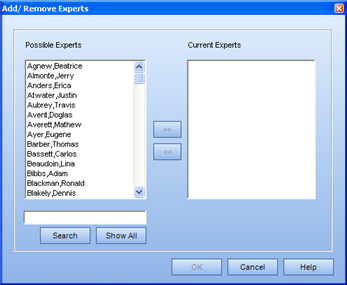
- Right-click on the Capability Assessment and select Add/Remove
Experts.
The Add/ Remove Experts
dialog appears
.
- Select the Experts for this capability assessment, and click >>.
- Click OK.
The Experts appear in the corresponding box of the
context view.
To make a Capability Assessment accessible/ Put online
- Open the Process Manager.
- Highlight the Task in the tree.
- In the Properties section, set the Has
Capability Component to Yes.
- Highlight the Capability Assessment in the tree.
- In the Properties section, set the Online
field to Yes.